MxiPOS
Documentation
Get started with MxiPOS — guides, features, and more
Quick Start Guides
Step-by-step setup guides for different industries
Full Service Restaurant
Restaurant setup covering tables and products. 5 core steps, with store info, kitchen printing, and other optional setup listed separately.
Tea & Beverage
Quick setup for milk tea, coffee, bakery, and dessert shops. 5 core steps, with optional setup listed separately.
Product Overview
MxiPOS is a modular POS and store management platform for restaurants, beverage shops, retail stores, and service businesses, from one outlet to multiple branches.
App Ecosystem
Four apps working together across checkout, mobile management, food and beverage ordering, and kitchen operations
MxiPOS
In-Store Checkout
MxiBoss
Mobile Manager
MxiPAD
Staff Order Taking / Customer Self-Ordering
MxiKDS
Kitchen Display
Store Ordering & Serving
MxiPOS combines guest self-ordering, staff mobile ordering, front-of-house checkout, kitchen display, and queue calling according to how your store operates. Available modules and devices depend on your deployment plan.
MxiBoss
Who it's for
Owners, store managers, and management staff.
What it solves
Sales data and store status are hard to check when you're away from the store.
Basic workflow
Sign in to MxiBoss → view sales data → handle orders, members, inventory, and store operations.
Works with
Syncs with the MxiPOS store terminal; sales data produced at the store is viewed in MxiBoss.
Deployment notes
MxiBoss is available for Android and iOS; get the installer on the downloads page.
QR Ordering
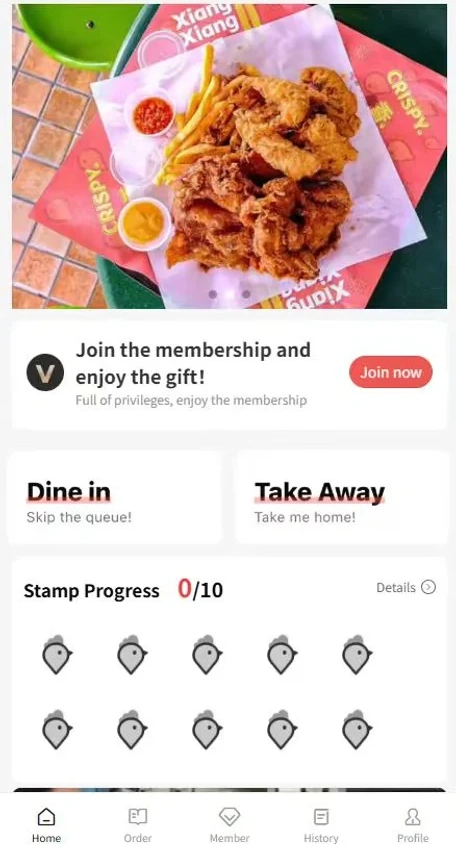
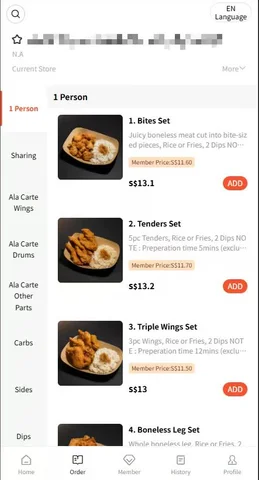
Who it's for
Restaurants, cafes, and beverage stores where guests order themselves.
What it solves
Ordering depends on staff; peak-hour ordering is slow and multilingual menus are hard to communicate.
Basic workflow
Guest scans the QR code → views the menu → selects items and options → submits the order → the order enters the store system → front of house or kitchen continues processing.
Works with
Orders enter the MxiPOS register; with kitchen display or printers configured, they also reach MxiKDS and kitchen printing.
Deployment notes
QR ordering is not a standalone app; it is enabled as part of your store plan. Whether payment is completed online depends on the payment methods the merchant has enabled.
MxiPAD Tablet Ordering
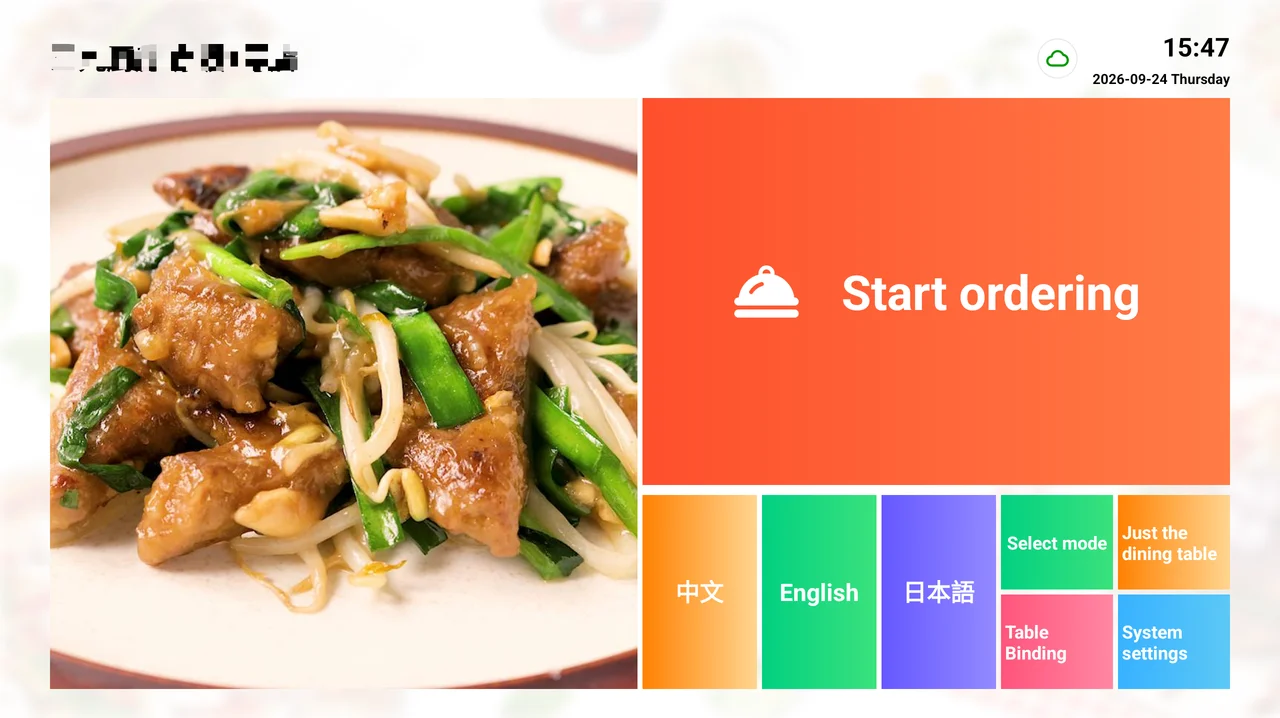
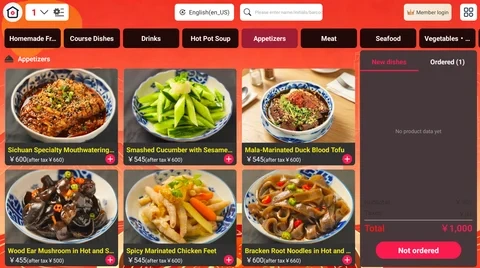
Who it's for
Stores where staff take orders at the table, or where guests self-order on tablets.
What it solves
Paper pads and scattered ordering entry points cause delays in order sync.
Basic workflow
Staff take orders at the table on a tablet, or guests self-order → orders sync to the MxiPOS register in real time → the kitchen receives them via MxiKDS or a printer.
Works with
MxiPAD → MxiPOS → MxiKDS / printer.
Deployment notes
MxiPAD is available for Android and iOS; get the installer on the downloads page.
MxiKDS Kitchen Display
Who it's for
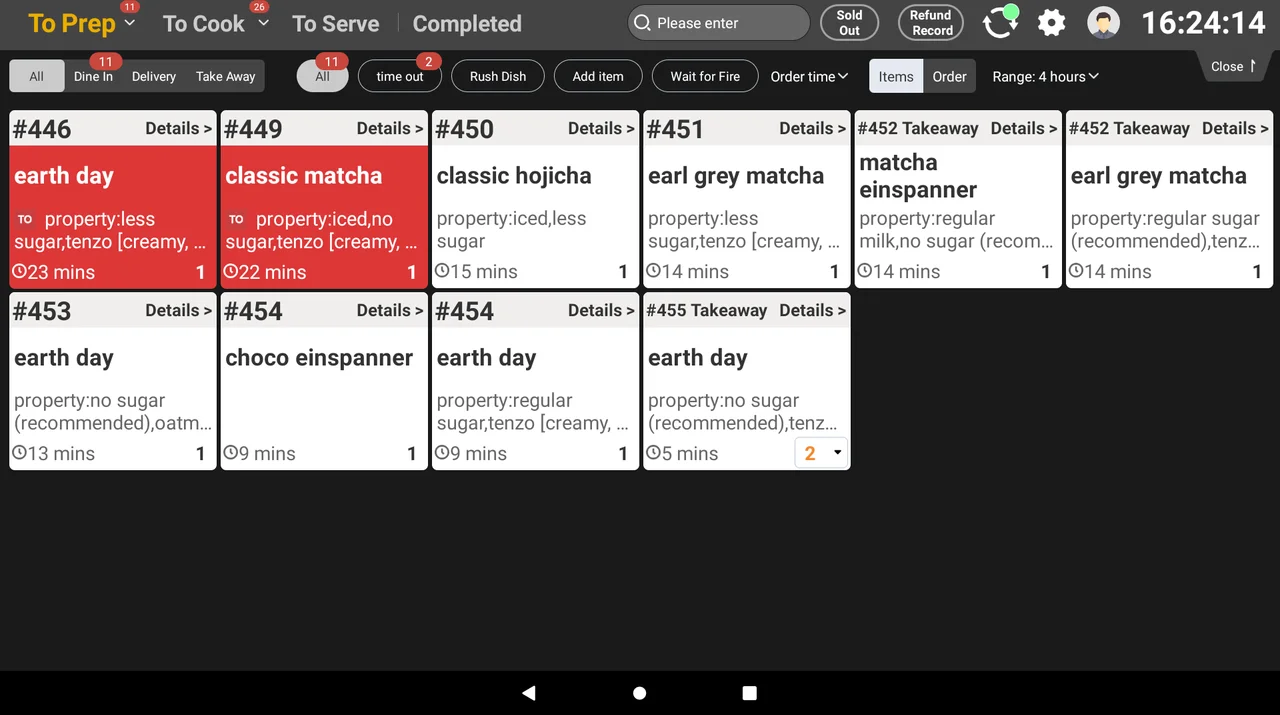
Stores with high kitchen order volume that still rely on paper tickets.
What it solves
Paper tickets are easy to miss, the sequence gets mixed up, and serving status can't be tracked.
Basic workflow
Order arrives → kitchen views it → preparation starts → status updates → completed / served.
Works with
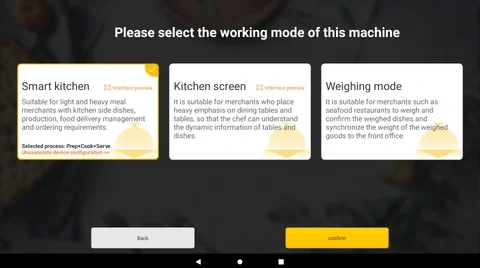
Works in real time with the MxiPOS register; front-of-house orders appear on the kitchen display automatically.
Deployment notes
MxiKDS is available for Android; get the installer on the downloads page.
MxiQueue
Who it's for
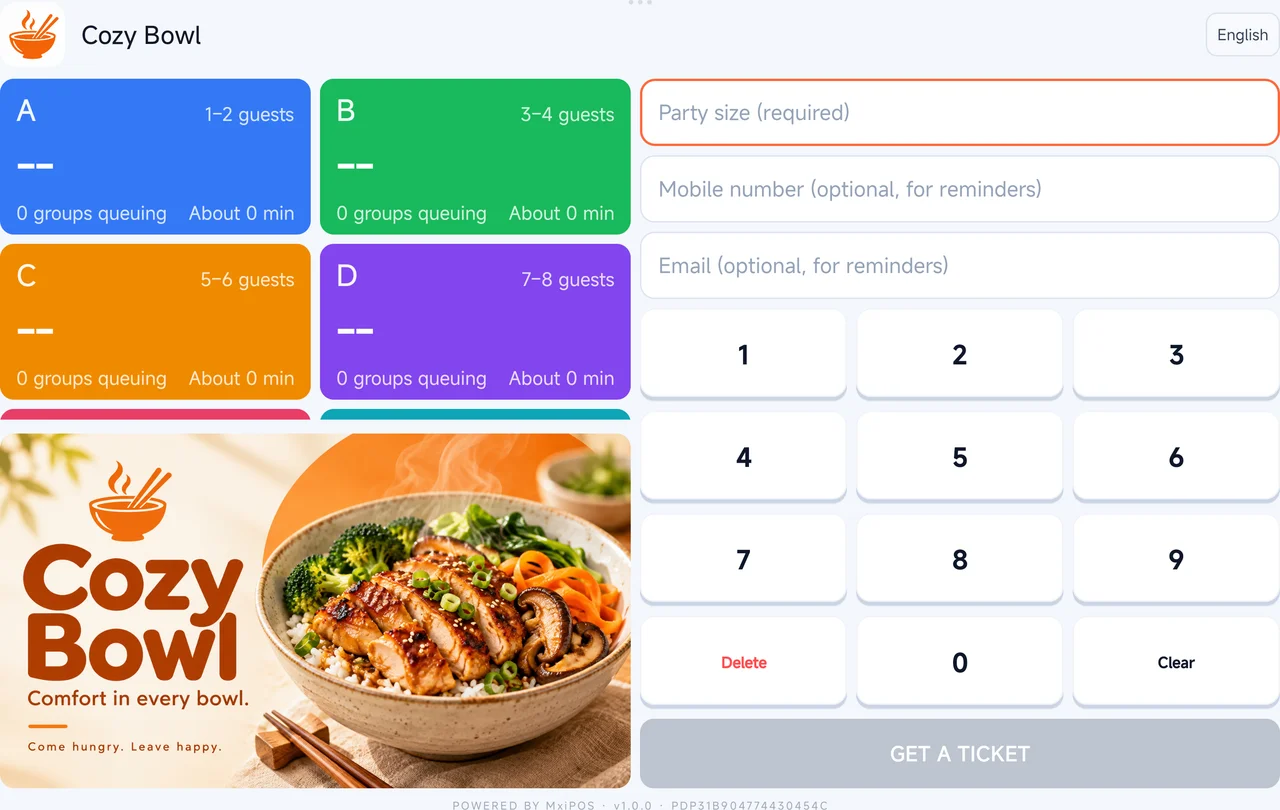
Stores with waiting lines, counter pickup, or peak-hour queues.
What it solves
Peak-hour queues are disorganized and calling numbers depends on staff.
Basic workflow
Guest takes a number → joins the queue → staff or the POS terminal calls the number → the guest is seated or picks up.
Works with
Works with the MxiPOS store flow and supports number calling linked from the POS terminal.
Deployment notes
The MxiQueue client supports Android phones only; iPhones are not supported. Add it according to your store's operating scenarios.
Other Core Capabilities
Member management, inventory, delivery, reporting, and multi-store summaries
● Inventory & BOM
Stock-in/out, transfers, stocktaking, recipe & ingredient tracking, cost control.
● Delivery & Reports
GrabFood integration, centralized order receiving, sales reports, multi-store consolidation.
Frequently Asked Questions
How do I change the MxiPOS language?
How do I change the store currency and thousands separator?
How do I record payments made through a standalone QR code?
How do I take orders and check out?
Open a table in MxiPOS, add dishes, and send the order. The receipt printer prints a guest order ticket; if a kitchen printer is configured, it also prints a kitchen order ticket. See the restaurant setup guide for details.
At checkout, the receipt printer prints a checkout receipt.
For cash payments, select Confirm if no change is due. Otherwise, enter the amount received to display the change. A connected and configured cash drawer opens automatically.
How do I correct an order or issue a refund?
Before checkout: Open Tables and select the table. On the right side of the cart, select Return Dish to remove a dish entered by mistake, or Cancel Table to cancel the entire table order.
After checkout: In the left menu, go to Bills > Search and find the order. Use Reverse Checkout to undo the checkout, or Refund to return the payment. You can refund the entire order or individual dishes.
How do I move dishes to another table or change tables?
Change tables: In MxiPOS, open Tables and select the current table. Select Change Table to the right of the cart, then choose the target table.
Move a dish: Select the dish on the current table, select Move Dish on the right, then choose the target table.
How do I configure taxes and fees?
In MxiBoss, open Store Operations > Taxes & Fees and select Add Custom. Enter a name, such as VAT, and the tax rate. Choose whether the price includes tax or tax is added to the price.
You can create multiple taxes and assign different rates to products, such as 10% for alcoholic beverages and 8% for food. The checkout receipt shows the tax details; [8%内]VAT means the price includes 8% VAT.
How do I configure electronic invoicing?
Sign in to sp.mxipos.com, go to Settings > Invoice Management, and click Add. In Vietnam, enter the authorization details sent by the FAST invoice provider to the merchant's email, such as Client Code and Proxy Code.
Explore e-invoice setup and pricing